

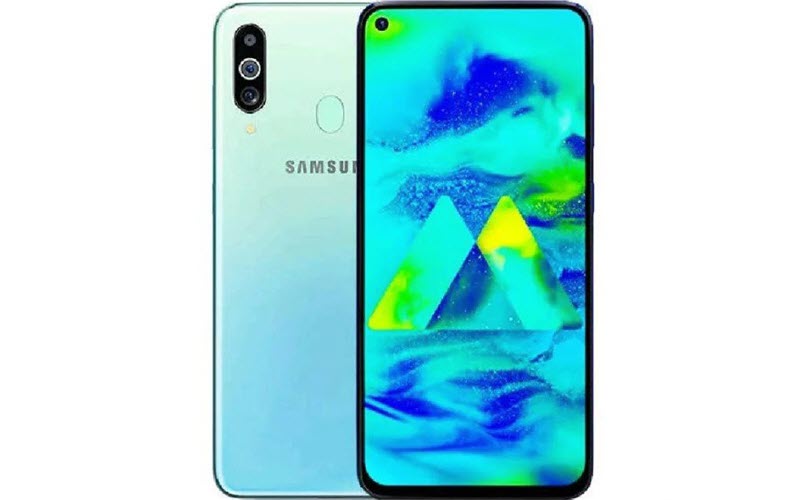
Does your smartphone became slow? it hangs? you want to reset it to restore its speed to the same level when you bought your smartphone? Is there ‘Insufficient Storage’ error on your smartphone? Have you forgot your lockscreen password? In this tutorial, we are going to guide on How to reset/ factory reset Samsung Galaxy M40? How to bypass screen lock/ password in Samsung Galaxy M40? (Bypassing screen lock becomes necessary, when user forgets lockscreen password or pattern and want to bypass the same.). Apart from this, we will also going to learn How to restore defaults on Samsung Galaxy M40? How to wipe all data in Samsung Galaxy M40?.
Table of Contents
Introduction
With the ongoing time, smartphones becoming stronger, fast, and powerful than ever before. Thanks to the powerful hardware which has brought evolution in smartphone industry. But there are few problems, which exists since anticipation. There comes the time when we are not sure about certain features specific to our device. With the time, smartphones usually become slow, and then we need to reset. In this guide, we have provided solutions for slower devices, the whether they hang or get slow, or bypass lock screen password protection, or in case ‘insufficient storage’ error appeared on screen and storage become full. Sometimes one needs to reset the device, when they want to give device to someone in the family or sell it, and want that nobody should be able to access files and passwords.
In the following tutorial we explained in detail on how to format/ reset Samsung Galaxy M40 and make it fully smooth and fast as you bought on first day out of the store.
Caution: You must keep in mind that Factory Reset/ Reset returns the device to the original factory state like when you bought your device. Resetting your device deleted all the multimedia content, user files on your device, i.e. Apps including Data, apart from that comes pre-installed, Images, Documents, Audio Files, Video Files and everything else stored in internal storage of your device. We strongly recommend you to make backup of your data before doing the reset, so that you won’t loss any important of required data.
About Samsung Galaxy M40
The Smartphone gets a Chipset Qualcomm SDM675 Snapdragon 675 (11 nm), CPU Octa-core (2×2.0 GHz Kryo 460 Gold & 6×1.7 GHz Kryo 460 Silver), GPU Adreno 612, Internal 64GB 4GB RAM, 128GB 6GB RAM, Triple Camera setup includes 32 MP, f/1.7, 26mm (wide), 1/2.8″, 0.8µm, PDAF / 8 MP, f/2.2, 12mm (ultrawide), 1/4.0″, 1.12µm, PDAF / 5 MP, f/2.2, (depth), Display 6.3 inches, 97.4 cm2 (~84.9% screen-to-body ratio), PLS TFT capacitive touchscreen, 1080 x 2340 pixels resolution, 19.5:9 ratio (~409 ppi density).
Now, lets move on to the procedures to reset Samsung Galaxy M40. There are two ways, one is through Settings/ Options, and for another one we have to boot the device into the recovery mode. Though we suggest, you should go through the recovery mode option, which is more effective since it clean up the device while the cache files are not being accessed by the Android OS of the device, and device is in turned off condition and running in recovery mode.





Before You Begin – Prerequisites
- Make sure that your device Samsung Galaxy M40 is turned on and accessible.
- Ensure to check battery charging level your device, make sure that device’s battery is charged to at least to 75%, as it might take up to 1 hour to complete the process.. It there is less than 50% power remaining on the battery, then it is suggested to keep the device plugged in while performing the reset operation.
- Backup everything on your device! Make sure to take backup of your device as the process removes all of the personal information and files.
- We recommend to remove microSD card/ memory card before doing the factory reset.
- The process mentioned in this article applies to almost all the devices, made by various manufacturers. The process supports various Operating System (OS)/ User Interface (UI) variants, but the key combinations/ things may be slightly different based on the smartphone model of the brand.
Method 1: Factory Reset Samsung Galaxy M40 from Settings – Normal Mode
Before You Begin – Things to Check
Each Android Device might have different key combinations, based on each manufacturer and UI/ Operating System customization. So, things may be slightly different on your particular tablet or smartphone model.
Ensure to remove any microSD card / memory cards before proceeding with process of resetting the device.
It can take an hour or more for the reset to complete. Make sure your device Samsung Galaxy M40 is charged — ideally, it’s best to leave it plugged in during the reset process
Step 1: First of all, navigate to the Settings which has cogwheel icon, and then scroll down to the bottom and select System to continue, where you can configure Language, Time, Backup, and system updates.


Step 2: Then, just navigate to About Phone/ Advanced menu, which displays the advanced option and about operating system information of your device. Select Reset options, from where you can reset Network, apps or Device completely.

Step 3: Now, just Select Erase all data (factory reset). The factory data reset will restore the device like it is bought just now out of the box.

Step 4: On the next screen, just Select Reset Phone or Reset Tablet, which is located at the bottom of the screen.

Step 5: Then, on the next screen, you will be asked to confirm whether you’re sure that you want to reset the device or it was pressed accidentally, just select the option Erase Everything . You must be aware that all data would be deleted from phone, including backup copies stored on internal storage of your device and the process can’t be undone, including images, audio files, documents, contacts, call logs and other data would be permanently erased. The data you have uploaded online including Google Drive data, Facebook, Twitter, Instagram etc. would not be deleted.

Step 6: If there is no pattern lock or password is set, then process should went smooth. Otherwise, draw screen pattern and enter the screen unlock password/ pin to continue. Now at this stage, the device would Reboot and would show ongoing progress screen indicating that the data is being erased.
Step 7: After operating system finishes deleting all of the the data on the device, the Samsung Galaxy M40 device would now restart/ reboot once again, which usually takes several minutes to boot after reset. Now, there comes the screen similar to the one which arrived just after when you bought and unboxed your device first time from the sales box.
Method 2: Factory Reset Samsung Galaxy M40 – Hard Reset or Recovery Mode
The biggest drawback of Android Operating System is that the Android devices become slower over time, and usually starts facing random slowdowns, glitches, among other issues. That is that time when we need to find a solution to return our device to normal functions. The slowdowns can be also caused by viruses, and if the issues won’t get fixed with virus scans and repairs, then only option is left is ‘Recovery Mode’.
Recovery Model in Android enables devices to reboot as fresh start without any virus or other issues that were previously causing the troubles. In recovery mode, we can access the Android device before the Android operating system itself is fully loaded. Recovery mode enables you to make the changes which is normally impossible while device is running. We can get root access, restore backup of the OS, which resets the device and deletes all user data.
Recovery Mode is not programmed as easily accessible by beginners. Recovery mode is designed for developers, and usually not required by beginner level users or those who need it. Though accessing the recovery mode can cause trouble for some, and if same thing happened with you as well, then just reach to your phone or table manufacturer for getting assistance.
Factory Reset Samsung Galaxy M40 from Recovery Mode
Accessing Recovery Mode requires correct key combination, which can be different from one written here. If default instructions presented here don’t work for your Samsung Galaxy M40 device, then simply search the web for ‘Recovery mode’ including the Make and Model, i.e. Samsung Galaxy M40.
Step 1: Press and hold the power button for a few seconds, then a menu will appear with options like Power Off and Restart. Select Power Off.

Step 2: Your device would now turn off. Now, its time to wait for 5-6 seconds.
Step 3: Use the Key Combination to enter Recovery mode and to boot your device. Depending on your model, you can use Volume Down to highlight Recovery Mode and Power button to select. Most common options includes password entry and language selection to enter recovery mode. You must keep holding the below mentioned key combinations together/ simultaneously for a few seconds, according to Android version, until manufacturer logo is displayed.
Here is the dedicated list of most common key combination of most of the Android devices:
- Samsung: Power + Home + Volume Up
- Nexus: Power + Volume Up + Volume Down
- LG: Power + Volume Down
- HTC: Power + Volume Down
- Motorola: Power + Home
- Sony: Power + Volume Up OR Volume Down
- Pixel: Power + Volume Down
- Huawei: Power + Volume Down
- Xiaomi: Power + Volume Up
- OnePlus: Power + Volume Down
Remember that your device must be in turned off status while using these key combinations.
In case your device is not listed in above list, then try each method from the list, many devices are similar to others. One key combination might work, other might not.
If you’re unable to boot your Samsung Galaxy M40 into recovery mode following the above key combination, then contact your device’s manufacturer for guidance.
Step 4: Your device should be in Recovery Mode now, as soon as ‘Android splash screen’ with manufacturer logo appears, release the Key combination keys, i.e. Power and Volume Down buttons.
Step 5: It should be noted that once you entered into Recovery mode, the touch screen is mostly disable by manufacturers. As stated above, only hardware key combinations would work. Use volume up and down keys, and then highlight Wipe data / factory reset.
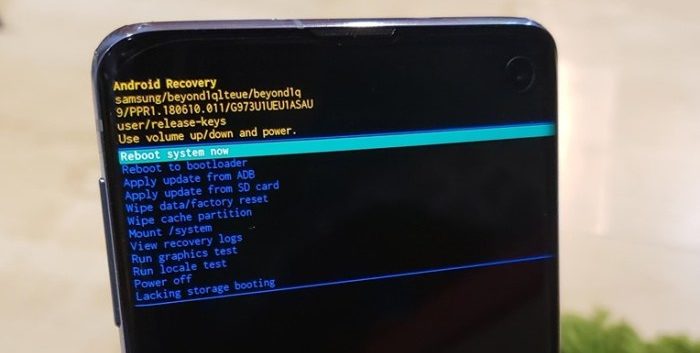
Step 6: Now, just press the power button to select Wipe Cache Partition, to clear device cache.
Step 7: Now use the volume keys and power button to select Wipe data / factory reset. Follow the onscreen prompts to complete the process of factory reset of the device. Once process finishes, your Samsung Galaxy M40 device would be automatically get reboot. Once done, the device would take several minutes to boot, while it is optimizing the pre-installed system applications and operating system.
Now, its time to setup your Android device like a new device. Hoping that the process went smooth for you and your Samsung Galaxy M40 has been reset.


you’ve gotten an ideal weblog right here! would you wish to make some invite posts on my blog?
Hi there! I’m at work surfing around your blog from my new iphone 3gs! Just wanted to say I love reading through your blog and look forward to all your posts! Keep up the fantastic work!
viagraonline
I together with my guys happened to be examining the good helpful tips on your website and then unexpectedly I got a horrible feeling I never thanked you for those strategies. All of the men are actually absolutely glad to learn all of them and have now unquestionably been tapping into those things. Thank you for turning out to be so accommodating and for making a choice on this form of perfect resources most people are really desperate to discover. My personal sincere apologies for not expressing appreciation to you earlier.
Hmm is anyone else experiencing problems with the pictures on this blog loading? I’m trying to figure out if its a problem on my end or if it’s the blog. Any feed-back would be greatly appreciated.
viagraonline2
I dugg some of you post as I cogitated they were very useful extremely helpful
Казино Mad Casino (Мэд) – играть на официальном сайте
Для поклонников качественных азартных развлечений существует множество платформ, но немногие сочетают в себе современный интерфейс, богатую библиотеку игр и выгодные условия для игроков. Одним из таких проектов является казино Mad Casino (Мэд) – играть на официальном сайте которого можно в лицензионном режиме с быстрыми выплатами и гарантией честности каждого раунда.
Этот игровой клуб позиционирует себя как современная площадка, адаптированная для пользователей из разных стран, предлагая им безопасную среду для досуга.
Официальный сайт и лицензия Mad Casino
Официальный сайт Mad Casino https://madsloty.com отличается лаконичным дизайном и интуитивной навигацией. Все разделы, от игрового зала до службы поддержки, доступны в несколько кликов. Сайт полностью адаптирован для мобильных устройств, что позволяет играть в казино Мэд прямо из браузера смартфона без потери функциональности.
Важнейший аспект надежности любого онлайн-проекта — наличие официального разрешения. Mad Casino operates under license ALSI-202510009-F11. Это означает, что:
• Деятельность платформы легальна и регулируется международным регулятором.
• Используется сертифицированное программное обеспечение, гарантирующее случайность результатов (RNG).
• Финансовые операции пользователей защищены.
Игровой зал: выбор развлечений
Библиотека казино Mad впечатляет своим разнообразием. Партнерство с десятками известных провайдеров позволяет предлагать игрокам тысячи вариантов для досуга.
• Видеослоты: Классические и современные игровые автоматы с различным количеством линий, бонусными играми и тематиками.
• Игры с живыми дилерами: Прямые трансляции рулетки, блэкджека, покера и других игр с реальными крупье создают эффект присутствия в настоящем казино.
• Столы: Виртуальные аналоги карточных и настольных игр для любителей стратегического подхода.
Бонусная программа для новых игроков
Mad Casino славится щедрыми условиями для привлечения новых клиентов. Приветственное предложение позволяет значительно увеличить стартовый банкролл.
Приветственный бонус составляет 150% к первому депозиту и 50 фриспинов. Чтобы его активировать, необходимо:
1. Заполнить регистрационную форму на официальном сайте.
2. Подтвердить свои контактные данные.
3. Внести первый депозит на сумму от минимального порога.
4. Активировать бонус в личном кабинете.
Бонусные средства и выигрыши с фриспинов подлежат отыгрышу с вейджером x35. Рекомендуем внимательно ознакомиться с полными правилами акции в разделе «Бонусы».
Регистрация и начало игры
Чтобы начать играть на официальном сайте Mad Casino, нужно создать аккаунт. Процесс занимает менее минуты:
• Нажмите кнопку «Регистрация».
• Укажите свой e-mail или номер телефона.
• Придумайте пароль и выберите валюту счета.
• Подтвердите регистрацию по ссылке в письме или смс.
После входа в личный кабинет вы сможете пополнить счет, выбрать игру из каталога и активировать доступные бонусы.
Ввод и вывод средств
Казино Мэд предлагает множество удобных способов для проведения финансовых операций. Поддерживаются как традиционные, так и современные методы платежей:
• Банковские карты (Visa, Mastercard, МИР).
• Электронные кошельки (Piastrix, FK Wallet и другие).
• Криптовалюты (Bitcoin, USDT и прочие).
• Мобильные платежи и переводы.
Минимальная сумма для депозита обычно составляет 100 рублей, для вывода — 1000 рублей. Заявки на вывод обрабатываются службой безопасности и, как правило, выполняются в течение 24 часов.
Часто задаваемые вопросы
Есть ли у Mad Casino мобильное приложение?
Официального мобильного приложения нет, но сайт идеально оптимизирован для всех современных смартфонов и планшетов. Вы можете добавить ярлык сайта на главный экран для быстрого доступа.
Как пройти верификацию в казино Мэд?
Для подтверждения аккаунта необходимо предоставить в службу поддержки фото документов: паспорта или водительских прав, а также подтверждение метода оплаты. Это стандартная процедура для безопасности ваших средств.
Что делать, если забыл пароль от аккаунта?
На странице входа нажмите «Забыли пароль?». Введите e-mail, указанный при регистрации, и следуйте инструкциям в письме для восстановления доступа.
Таким образом, казино Mad Casino (Мэд) представляет собой полноценную лицензионную игровую платформу с обширным выбором развлечений и выгодными стартовыми условиями. Играть на официальном сайте удобно как с компьютера, так и с мобильного устройства, а процесс вывода выигрышей не вызывает сложностей у большинства пользователей.
Hello, everything is going sound here and ofcourse every one is sharing facts, that’s actually excellent, keep up writing.
лучшие казино россии
Finery Markets is an institutional trading platform for digital assets, offering a secure, non-custodial ECN infrastructure for brokers, market makers, and Crypto OTC desk operators with access to aggregated liquidity and efficient trade execution.
stablecoin liquidity stablecoin liquidity
Maxim Anma is a professional mobile massage service available throughout Seoul, Gyeonggi, and Incheon. Skilled therapists come directly to you to provide soothing, customized care including Thai, aroma, and Swedish treatments. Available 24/7 with a reliable post-payment system and complete privacy protection, guaranteeing a convenient and convenient wellness experience anytime, anywhere.
출장안마
Wow, superb blog structure! How long have you ever been blogging for? you made running a blog glance easy. The entire glance of your website is excellent, let alone the content!