

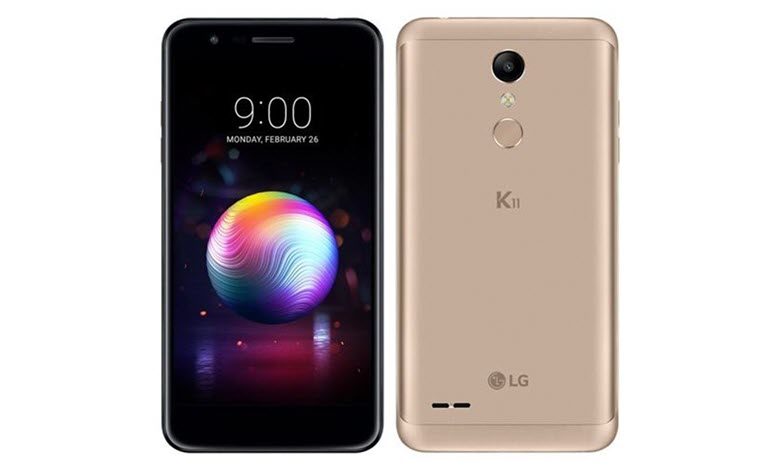
If you are searching for proper ways to unleash the potential power of your LG K11 device, which is only possible after rooting the device, then here you go. If you have a LG K11 Android Smartphone and you are looking forward to rooting it without PC, Mac, or laptop safely without bricking the device, and without flashing TWRP, then you are in the right place
We have compelled five different methods in this simple tutorial which will guide you to Root LG K11 Without PC or With PC, i.e. without TWRP Recovery. As we have shown five different methods, then got the choice. If any process from the below-mentioned process failed due to any reason, then you have other methods that should work for your device.
Table of Contents
About LG K11 LMX410
The LG K11 (LMX410, LMX410FC, LMX410YC, LMX410HC, LMX410EO, LMX410ZCW, LMX410BCW, LM-X410S) gets the specifications:
Chipset: Mediatek MT6750 (28 nm)
CPU: Octa-core (4×1.5 GHz Cortex-A53 & 4×1.0 GHz Cortex-A53)
GPU: Mali-T860MP2





Operating System: Android 8.1 (Oreo)
Internal: 16GB 2GB RAM, 32GB 3GB RAM
Camera: 13 MP or 8 MP, PDAF
Display: 5.3 inches, 77.4 cm2 (~69.2% screen-to-body ratio), IPS LCD capacitive touchscreen, 720 x 1280 pixels, 16:9 ratio (~277 ppi density).
Why Root? What is the meaning of Rooting?
If we have to describe rooting in simple terms then it is not a typical thing. Rooting doesn’t mean ‘Root’ of a tree, in fact, we are talking about Android smartphone rooting. Rooting your Android smartphone means that providing or giving superpower/ Administrator privileges to the hardware of your device. Devices are limited in terms of power, at the software (OS) level. Once you root your device, you can do whatever you intended to or want to do with your Android System Settings.
But, before we move ahead to root the LG K11 device, we must know the brief Advantages and Disadvantages of rooting your LG K11 smartphone.
Pros/ Advantages of Rooting
After rooting your device, you can do customization of your device, i.e. Installation of Custom ROMs, remove factory preinstalled bloatware, update phone to a new Android version. Apart from that, you can block Ads in any apps, Install incompatible apps by tweaking the os settings, Change the look and feel of your device by changing the skin, Boost Battery Life, and Android System Speed, add external storage, and many more.
Cons/ Disadvantages of Rooting
Rooting your device comes with cons or disadvantages as well. The biggest disadvantage is that the Phone warranty will be void once you root your device because of manufacturers ships unrooted and locked devices. Apart from that, while rooting the device, if anything goes wrong, then your device might be bricked. Manufacturers only provide updates to the unrooted devices, hence your device will no longer remain secure because it would not receive official firmware updates by the manufacturer.
How To Root LG K11 LMX410 Without PC / Without TWRP
Method 1: Root LG K11 LMX410 With KingRoot
- Download KingRoot APK latest version and install it. If ‘Installation blocked‘ message appears of Chrome/ Android, then take it as a reminder that you have not yet unlocked ‘Installing apps from unknown sources‘ other than Google Play.
- Once the installation is complete, click the ‘Open‘ button to start the KingRoot app.
- Tap on the ‘Try it‘ button to enter into the main interface, and click the ‘Get Now‘ button to start the rooting process.
- Once the rooting process is completed, you will get a message notification that Your device is Rooted Successfully. Simply return to the main KingRoot interface screen.
That’s it, you have successfully Rooted your LG K11 without PC with KingRoot APK/ App.
Method 2: Root LG K11 LMX410 With KingoRoot
- Download KingoRoot APK latest version and install it.
- If Google Chrome warning or Operating system warning appears on the screen about ‘KingoRoot.apk‘ or ‘Installation Blocked‘, then simply unblock. Just got to Settings > Security > Installation Blocked (Uncheck/ turn off the button stating Installation of apps obtained from unknown sources). and click ‘Ok‘ to proceed further to install KingoRoot.apk on your device.
- Then follow the instructions on the screen to install KingoRoot on your device. After installation gets completed, simply tap/ click to launch the KingoRoot app, and once you get into the KingoRoot interface, click on ‘One Click Root‘ to start rooting your device, which would take few seconds to complete and display the result on the screen.
- That’s all, you have rooted your LG K11.
Method 3: Root LG K11 LMX410 With Magisk
- Before proceeding further to the next step, just Download ‘Magisk. zip‘ Latest version, which would accomplish the root access on your LG K11 device.
- Then boot your device into the ‘Recovery Mode’, just press ‘Volume Down + Power Button’ simultaneously (same time) until the boot animation appears on the screen.
- After that, just Tap on ‘Install‘, then Locate the ‘Magisk. zip‘ file and then select the file downloaded (magisk.zip) and then simply tap on ‘Swipe to Confirm Flash‘.
- It would take a few moments to complete the installation process. Once the flash process gets completed, simply tap on ‘Reboot‘.
- That’s it. You have successfully rooted your LG K11 device with Magisk.
Method 4: Root LG K11 LMX410 With SuperSU
- Download ‘SuperSU. zip’ Latest version, which is required to gain the root access on your LG K11 device.
- Now, just boot the device into the ‘Recovery Mode’, press ‘Volume Down + Power Button’ same time until the boot animation displays on the screen.
- Then, just Tap on ‘Install‘, then navigate to the ‘SuperSU. zip‘ file and then select the file supersu.zip and then simply tap on ‘Swipe to Confirm Flash‘.
- It would take a few moments to complete the installation process. Once the flash process gets completed, simply tap on ‘Reboot‘.
- That’s it. You have successfully rooted your LG K11 device with SuperSU.
How To Root LG K11 LMX410 With PC
- First of all, Enable Developer Options on LG K11 smartphones. Navigate to Settings>About Phone> then tap on Build Number 5 to 7 Times, the go back to the previous screen, then tap on Developer options, now just enable USB debugging.
- After that, Connect your LG K11 Smartphone with your computer/ PC via USB cable.
- Now, download KingoRoot software in your PC & then install the same on your computer.
- After installation of the KingoRoot software, click on the KingoRoot icon on your desktop. Once the software opens, Connect the phone quickly to the PC, a prompt would appear on the screen, just Tap On Okay.
- Once the device is Recognized by the System, just tap on ‘Root‘. After that, it would hardly take a few minutes to complete the rooting process.
That’s all, you have successfully rooted LG K11 LMX410.
If you have gained root access through any of the aforementioned five methods, then it’s time to enjoy the full power of your device. If in case you want to confirm that whether your device is rooted or not, then simply go to Google Play App Store, and then search and download the Root Checker app to check if the root is successful.
Hopefully, the tutorial is useful, and you might expect to see more articles. If there are any suggestions, criticism, kindly comment on the below article. Do not forget to like our Facebook Fanpage and Follow our Twitter Handle to get in touch with our updates.



Great post! I followed your steps to root my LG K11 using Magisk, and it worked perfectly. The instructions were clear and easy to follow. Thanks for sharing this guide!
Great post! I followed your steps to root my LG K11 using Magisk, and it worked perfectly. Thank you for the clear instructions!
Thank you for sharing this guide! I appreciate the detailed steps for rooting my LG K11 without a PC. Your instructions were easy to follow, and I was able to use Magisk successfully. Keep up the great work!
Thanks for the detailed guide! I followed your steps to root my LG K11 using Magisk, and it worked perfectly. The explanations were clear, and I appreciated the troubleshooting tips too. Great job!
Great post! I found the step-by-step instructions super easy to follow. Rooting my LG K11 without a PC seemed daunting at first, but thanks to your guide, it was a breeze! Thanks for sharing!
Great guide! I successfully rooted my LG K11 using these steps, and it was much easier than I expected. Thanks for making the process clear and straightforward!
Great guide! I was able to root my LG K11 successfully using the steps provided. Magisk makes it so much easier to manage root access. Thanks for sharing!
Thanks for the detailed guide! I was a bit hesitant about rooting my LG K11, but your step-by-step instructions using Magisk made it straightforward. Everything worked perfectly, and I’m excited about the new customization options. Keep up the great work!
This guide was super helpful! I was a bit hesitant about rooting my LG K11, but your step-by-step instructions made it really easy. I appreciate the clear explanations and screenshots. Thank you for sharing!
Great post! I followed your steps and successfully rooted my LG K11 without any issues. Magisk worked perfectly. Thanks for the clear instructions!
Thank you for this detailed guide! I appreciated the clear steps and explanations. I was a bit hesitant to root my LG K11, but with your instructions, I feel more confident. Can’t wait to try out Magisk!
Thanks for the detailed guide! I followed your steps, and rooting my LG K11 was surprisingly easy with Magisk. Appreciate your efforts in sharing this!
Thanks for sharing this detailed guide! I was a bit hesitant about rooting my LG K11, but your step-by-step instructions made it much easier to follow. I appreciate the tips on using Magisk for a systemless root. Looking forward to trying this out!
Great guide! I followed the steps and successfully rooted my LG K11. The instructions were clear and easy to follow. Thanks for sharing!
This guide made the rooting process so much easier! I followed the steps, and everything worked perfectly. Thanks for providing clear instructions, especially with the Magisk part. It feels great to have root access on my LG K11 now!
Great guide! I followed the steps to root my LG K11 using Magisk, and it worked like a charm. The instructions were clear and easy to follow. Thanks for sharing!
Thanks for the detailed guide! I followed the steps carefully and was able to root my LG K11 successfully using Magisk. The instructions were clear and the screenshots really helped. I appreciate your effort in putting this together!
Great guide! I followed the steps and successfully rooted my LG K11 using Magisk. The instructions were clear and easy to follow. Thanks for sharing this!
Thanks for this detailed guide! I’ve been looking to root my LG K11 without a PC, and your step-by-step instructions made the process much clearer. I appreciate the tips on using Magisk too. Can’t wait to try it out!
Thanks for the detailed guide! I was able to root my LG K11 using your instructions without any issues. The step-by-step process was easy to follow, and Magisk worked perfectly for managing my apps. Appreciate the effort you put into this post!
Thank you for this detailed guide! Rooting my LG K11 seemed daunting at first, but your step-by-step instructions made it easy to follow. I appreciate the clarity and helpful tips throughout the process. Can’t wait to explore more customization options now that I have root access!
Great guide! I followed the steps and successfully rooted my LG K11 using Magisk without a PC. The instructions were clear and easy to follow. Thanks for sharing!
Great guide! I followed the steps and successfully rooted my LG K11 without any issues. Magisk worked perfectly for managing my apps. Thanks for sharing this!