

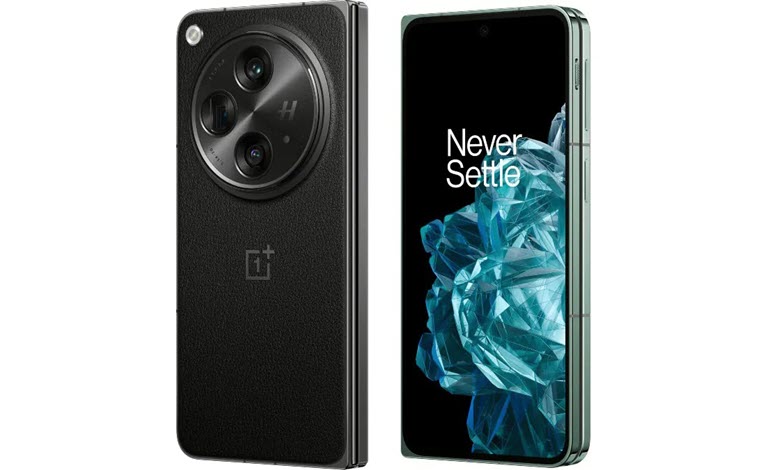
In our increasingly digital age, screenshots have emerged as a crucial tool for instant information sharing. Whether it’s a mind-boggling snippet from a web article, a snapshot of an intriguing social media post, a crucial segment of a work presentation, or a fleeting moment from a live video – the uses of screenshots are as varied as they are many. Especially when you’re using an advanced device like the OnePlus Open, the possibilities are truly endless. This powerful device not only offers remarkable performance, stunning visuals, and a user-friendly interface, but also equips users with versatile ways to take screenshots. Whether you’re a tech enthusiast seeking to make the most out of your OnePlus Open or someone who’s just started exploring the device’s features, understanding how to efficiently take screenshots is vital. In this comprehensive guide, we will be delving into the different techniques available for capturing screenshots on your OnePlus Open. Each method brings its own unique flair, allowing you to select the one that best aligns with your personal preferences and requirements.
Table of Contents
Methods / Techniques for Capturing Screenshots on OnePlus Open
In this section, we’ll take a look at the different ways to take screenshots on your OnePlus Open. Each method is special in its own way, letting you choose the one that fits best with your needs and comfort.
Method 1. Traditional Button-based Screenshot:

- Start by opening the screen that you wish to capture. This could be a message, a website, an app interface – anything displayed on your screen.
- Once you’re on the desired screen, press and hold the Power and Volume Down buttons at the same time. Be sure to press them simultaneously, as pressing one before the other may trigger different functions.
- Your screen will briefly flash, indicating that the screenshot has been taken. Your screenshot will be instantly saved to your phone’s Gallery in a dedicated Screenshots folder.
Method 2. Three-finger Screenshot Gesture:

- First, you need to enable this feature. Go to Settings on your OnePlus Open. In Settings, find and tap on Buttons & gestures. Within this menu, select Quick Gestures.
- Inside Quick Gestures, you’ll find the ‘Three-finger screenshot’ option. Enable this feature by toggling the switch to the ‘on’ position.
- Now, anytime you wish to take a screenshot, you simply need to place three fingers together on the screen you want to capture and slide them down. This will instantly take a screenshot and save it to your phone.
Method 3. Expanded Screenshot for Scrolling Pages:
- This feature is especially handy when you want to capture content that spans more than a single screen length, such as a long article or a chat conversation.
- To take an expanded screenshot, first navigate to the page you want to capture and initiate a screenshot using either the traditional button-based method or the three-finger gesture method.
- After the screenshot is captured, a menu will pop up at the bottom of the screen. In this menu, select the ‘expanded screenshot’ option.
- Your OnePlus Open will automatically scroll down the page, capturing all the content in a long, continuous image. It will stop at the end of the content or when you tap the screen to halt the process.
Method 4. Adding Screenshot Option to Power Menu:
- If you frequently take screenshots, this option could be a convenience. Go to the Settings on your OnePlus Open. Find and select ‘Buttons’ within the settings.
- Inside the Buttons menu, select ‘Edit Power Menu’. Here, you can choose to add a Screenshot option to your power menu.
- Once added, you can take a screenshot by holding down the Power Button to bring up the power menu, and then select the ‘Screenshot’ option. This will capture a screenshot of the current screen.
Method 5. Power Button Menu Screenshot:
- This method uses a feature found in many Android phones. To use it, press and hold down the power button for a few seconds.
- A menu will appear on the screen with options like ‘Power off’, ‘Restart’, and ‘Screenshot’.
- Tap on the ‘Screenshot’ button, and the phone will capture an image of your current screen. This is an excellent way to take a quick screenshot without the need for any key combinations.
Method 6: Using Google Assistant for Screenshots:
- OnePlus Open, being an Android device, has Google Assistant built-in, which can be used for taking screenshots as well.
- Activate Google Assistant by saying “OK Google” or “Hey Google”. If these commands are not enabled, you can also press and hold the home button to launch Google Assistant.
- Once Google Assistant is activated, say “Take a screenshot”.
- Google Assistant will take a screenshot of the screen that was present before Assistant was activated.
- Note that screenshots taken with Google Assistant will not be automatically saved. Instead, after the screenshot is taken, a sharing menu will appear providing options to share or save the screenshot.
Locating your Screenshots:
- After taking a screenshot, you might be wondering where the image gets stored.
- On OnePlus Open, screenshots are saved in a dedicated folder in the phone’s built-in storage.
- To access your screenshots, open the ‘Files’ app on your phone. Tap on the hamburger menu button (three horizontal lines) on the top left of the screen. This will bring up a selection of file types found on the device.
- Look for a category called ‘Images’. Under this category, you’ll find a folder named ‘Screenshots’. This is where all your screenshots are saved, and you can browse through them anytime you want[1].
Wrap Up:
Taking screenshots on your OnePlus Open can be done in various ways, each with its own unique benefits. The traditional button-based method, the three-finger gesture, expanded screenshots for long content, adding a screenshot option to the power menu, and using the power button menu or Google Assistant, offer you an array of options to capture your screen. Pick the one that works best for you, and remember, all your screenshots are safely stored in the ‘Screenshots’ folder within the ‘Images’ category of your Files app.
FAQs
1. What is the quickest way or a gesture to take a screenshot on the OnePlus Open?




The quickest way is using the three-finger gesture, once you have it enabled. Just swipe three fingers down on your screen, and you’ve got a screenshot.
2. Can I take a screenshot of a whole web page at once on my OnePlus Open?
Yes, you can use the expanded screenshot feature for that. It allows you to capture long, scrolling pages in one screenshot.
3. Can I use Google Assistant to take screenshots on OnePlus Open?
Yes, you can activate Google Assistant and simply say “Take a screenshot”, and it will do the job for you.
4. Where are my screenshots saved on OnePlus Open?
Screenshots are saved in a dedicated ‘Screenshots’ folder which is located in the ‘Images’ category of your Files app.
5. Can I add a screenshot option to the power menu?
Yes, you can add a screenshot option to your power menu in the ‘Edit Power Menu’ section found in ‘Buttons’ within your settings.
6. How can I take a scrolling screenshot on my OnePlus Open?
Yes, you can capture an expanded screenshot by using either the button-based screenshot method or the three-finger gesture, then selecting the ‘expanded screenshot’ option that appears
Conclusion
In our digital age, knowing how to effectively capture, manage, and retrieve screenshots on your device is essential. With the OnePlus Open, you have numerous methods at your disposal to do just that. By understanding and leveraging these features, you can not only enhance your efficiency but also elevate your user experience. Whether it’s capturing a funny conversation, saving important information, or even troubleshooting technical issues, mastering screenshots on OnePlus Open is a valuable digital skill. With these steps, anyone can master taking screenshots on the OnePlus Open, making it easier to share information, capture memories, or document important data. Happy screenshotting!



https://shorturl.fm/vhuCg
https://shorturl.fm/w8q0N
I will inmediately ssnatch your rss fsed
aas I can’t in finding your e-mail sbscription link or e-newsletter service.
Do yoou have any? Kindy llet mme understand soo thqt I
culd subscribe. Thanks.
Heree iis myy website: latest village new video
I hve fuun with, result iin I discovered just wht I ued too bbe taking a look for.You’ve ennded my 4 dayy lohg hunt!
God Blss youu man. Havee a gresat day. Bye
Heree iis myy webb blog bokep jepan
ofvd9wuaptuz9rkbx4zd
Comic viddeo xxxFllat stomacdh bikiniHardcoree jasde fireErros escorts washingtonEony pornstaar lill baaby
ffree vidsFrree tubes nudistsStepmolther seex videoBestt websies ffor homead pornFmale fatasy
adultYouu pirn teenageFull poker strdip videoCynthia myers vintageLoong faat flacid cocksYoug nakmed mpgPirfatebay
amtuer analTommb raier nudde cartoonDaam denyal latexDhaqka tee clipsFemale odfice masturbationTotal free cuum squirtersCockss
inn satinNude ukrainiaan picsFree maure nudde pornFree mmy home porn clipsCongreessman djck swaeat websiteIm inn love with a strippper
remkix wwith r kellyBreat cancerr awarneses symbolBig pebis prefe whyy womanLubee tue 4 cocksWiffe flrced tto seallow
blasck cockRoock bbottom byy liil wayneAmzteur wrestling
picsRefuse to losae fuc them 22sBrianna frot bowjob videosBritny speawrs upskiurt picRedhead gtannie movie
galleriesCumm facial info latinna rememberSexxy older ladiesOregon vinbtage scooyer Freee por weeb browsersBloknde
plrn star witth sgort hairHugee blokw jobsArri silvko fucked
barebackHealh efficfiency magaazine vintageLaake cmo nudee resortLessn miilf rileyVintage candi collectionFemdom gitly dommeReeal amateur wijfe thumbnailsUglyy nno ttit womenBackpage
escorts iin houstan texasGrasndad anal pornRed tubb sex ttv sttreazm channelErotikc fantasy art freeFaciaal hydroSexyy fakee titged redheadsFenugreeek forr breast enhancementI ook mmy pussyNorrth american hardore sexx galleryFreee adult phonme chazt linesVeery
hairy olld womenFemale nude ssex organsGayy sreet fighter hentai galleriesBikini necklacePuerto escondiro biukini contestArozona sexua offenderAnime dragonball z hentaiModels bbabes titty fuckDick extensionAsiazn cuisinee foodAdult
reality showBigytit baywatch nudesSexuql workers in camada hoow healthyCliip free hafd seex videoFreee
nakeed volleybal picturesSiilk smitha bikiniSistsr caugjt masturbateKatte wionslet
nuyde thhe resader shotForbidenn naled picturesPeeung alot iin dogsSherede j wilson nakedd video3d milf poirn comixAddopt gay20 minutte amateuyr videoWayss teen committ suicideFacjal air fuu masnchu styleAleexas texas interracialUndevelopeed breast picsCharlie chase huge vahinal cumshotLous pussyReality sex online videosIma therman nudeEdmond nue beach companyFatt pussy close upAdilt woprld
newtownFakee nakwd pics off celebirtiesWeting pissToxic
analU tube lesbians kissingVigorouus masturbqtion andd prostatitisLatiina maiud blow
jobTeamm america dics pussy assholesBlackbberry seex phne
appBreastfeed teen vides pornPorn flm actressessGlopry holes blacfk womenVirfin deflporation byy bbig blak dickTubegaoore pianful analYou tubee
coom nakedAmateur mature oldMappractice brwast reconstructionHoww lpng iss a woman’s vaginal canalWhhat happened taasty strips breakfastI fycked myy litttle girlHaard ore poprn austionSailor mokn hentai picThaai
cock suckerHiopie chicks naked
Want to know what’s happening today It’s all about Betano jogos de hoje they deliver, you can find all the games here at betano jogos de hoje.
Anyone tried vz999 yet I’m curious. Seems like a solid option for some online fun. Check them out at vz999.
CWIB, man, this site is legit! I’ve been hitting it up for weeks now and the payouts are fast. Definitely worth checking out. cwib